Tips,Tricks and hack for blogger blogs

Today’s post is dedicated to all those people using blogger.com. Its a great service which offers free web hosting. I wonder how much bandwidth blogger would provide!
Before trying any of the below mentioned tips/tricks, backup your theme — Goto “Layout” -> “Edit HTML” and click on “Download Full Template”..

Today’s post is dedicated to all those people using blogger.com. Its a great service which offers free web hosting. I wonder how much bandwidth blogger would provide!

Before trying any of the below mentioned tips/tricks, backup your theme — Goto “Layout” -> “Edit HTML” and click on “Download Full Template”..
This article is only for education purpose and I am not an expert in coding blogger templates, so try at your own risk. By changing the default behavior of the blogger blogs, you may be violating their policy. So we make it clear that, this article is only for education/learning purpose.

1. To insert Meta tags:-
Place

in between tags.

In the above code expr:content= ‘data:blog.pageTitle’ gets replaced by the title of your current page. So when combined with the common description tags, the description tag becomes unique for each page. Also do not forget to replace “Put in your common description tags here” with some description of your website(this will be common for all pages of your website.)

2. Read more option (show only post Excerpt in the home page):-

Login to your account and click on the “Layout” tab. Then select “Edit HTML”. Check ” Expand Widget Templates”.
Now search for and paste the below code between and


Now search for in the template HTML and paste the following piece of code after


Read more..


Save it. That’s all about coding part of the theme. To show only post excerpts on the homepage, you need to insert post excerpt.Remaining article will be shown after clicking on "Read more.." link. . Now your articles and blog will look more professional.

3. Hide the Blogger navbar:-
Blogger-navbar.jpg
Add this line #navbar-iframe {display: none !important;} before /* Variable definitions

or

Paste below code inbetween

, before .


#b-navbar {
height:0px;
visibility:hidden;
display:none
}


4. Post articles from email:-
blogger-email-post-publishing.jpg
Goto “Settings”, click on “Email” option. And set the email ID, and start posting articles from your email ID.
Its interesting to note that, you can post upto 10MB of images directly from your email.

5. Bulk image uploader(for firefox users only):-
Use “Drag Drop Uploader” FireFox Addon and upload as many images as you want.

6. Change the default favicon and put your favicon, great for branding purpose:-
Upload your favicon(an image of 16 x 16 pixels or 32 x 32 pixels with .png, .gif, or .ico extension. Use either 8-bit or 24-bit colours.)
Now paste below code between tags.


Book mark this article, as there is more to come, as we investigate and play with Blogger.
We thought of making this a serious post, but it would annoy visitors as they need to navigate to different pages to get what they want. So we decided to keep all things at one place. Hope this article is of some use for some of you. If this article helps you in anyway, then please share this story with as many people as possible.Thanks

Add Language Translation to your Website

It is notable that, the majority of internet users are from non-English speaking community. Thus, its important to take care of non-English speaking visitors.

The most popular free Web-based language translation tools are offered by Google, AltaVista Babelfish and WorldLingo and some other wordpress plugins.

But all these services may not provoid 100% perfect translation. But we can relay on Google Translator, as there is an option where anybody can suggest the correct translations, in case Google Translator has translated wrongly. So we can say that, Google Translator is a constantly improving service.

Implementing Google Translator:

Just copy and paste the code to your wordpress blog, wherever you want the translator tool to appear.

Translate

If you are using blogspot.com then just replace < ?php the_permalink() ?> with < $BlogItemPermalinkUrl$> from the code and it should work fine with blogspot.

Google Translator can translate English to / from Arabic, Bulgarian, Chinese-Traditional, Croatian, Czech, Danish, Dutch, Finnish, French, German, Greek, Hindi, Italian, Portuguese, Chinese-Simplified, Japanese, Russian, Spanish, Korean, Norwegian, Polish, Romanian, Swedish.
The above list and the above code will be updated, as and when Google adds some new languages into its language translation tool.

We have implemented this tool in our blog too, and its working fine. And there are many visitors to this blog, from non-English speaking countries(as per Google-analytics report).
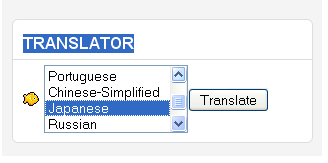
You can test this tool in our blog. We have placed it in the right side sidebar, with the heading “TRANSLATOR”. Below is a screen shot….

Translator-tool

Note the changes that occurs after you add this translation tool to your blog/website. And please share your research and opinions about adding translation tools to your blogs / websites.

And if you have any problem implementing this tool, then please let us know about the problem in the comment section of this article, and we shall try our best to help you implement it.

MyBlogLog – Some tricky uses

We have seen many cases where people try to hack and crack some popular sites and damage the reputation of it.It has been true in case of MyBloglog too.

But lets concentrate on the things by which we can get advantage of.

MyBlogLog is owned by Yahoo Inc.

Now I will show you how to track the recent 127 visitors(Who are also members of MyBlogLog).

Login to your MyBlogLog account using your yahoo username and password.

Click on add a website/blog link.Fill the small form and get your blog listed under your
My Sites and Services option.Now click on the widgets link below the website/blog listed.

It will look like the one shown in below image…

MyBlogLog

Your code will also look similar, except the ID number i.e., 200711051214522 in above case.

Just look for your code and copy the ID number(Just the number) and past it in one notepad or any other text editors.

Now look at the below code…


Now replace the ID number(i.e., 200711051214522 ) from your ID number.

That’s it….now copy and past the entire code wherever you want to show your recent 127 visitors who are also members of MyBlogLog.
Optional: In the above code we have made the color of widget texts Powered by MyBlogLog into white, you can change it to the color of your blogs background.

One more use of MyBlogLog is, we can encourage people to comment on our blog.

i.e., we can get the logo of members who are currently viewing your blog(if he/she is logged into their MyBlogLog account).

Here goes the code…


Just copy and past the above code(without any modification), anywhere in your blog to get the profile pic.

Below is one such use, to ask the visitors to share their opinion/knowledge by commenting about the article.(make sure you are logged into MyBlogLog to see the effect in this page).


Please share your opinion/knowledge by commenting about this article..